




AirDraw Tutorial of Key Features
1. Making a Recording of Movements
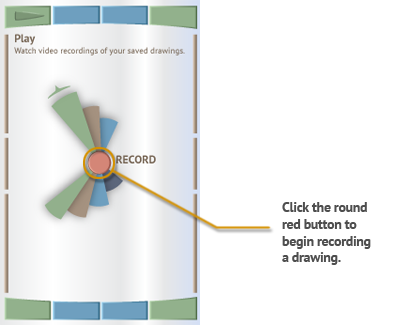
This App will draw a picture of any movements you make of your mobile device. To record a drawing of your device's movements, simply press the red "Record" button on the home page. Then move the device around to create a drawing. Press the square stop button to end the recording.
2. Navigating Inside the App
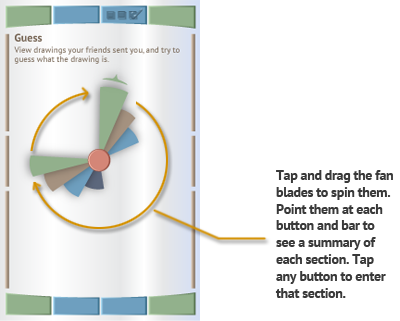
The main "Home" page of the AirDraw app shows a colorful fan in the middle of the screen with buttons around the outside of the page. You can click and drag the fan blades around the screen in a circular motion. When the fan blades are being moved, a pointer will appear at the end of the longest blade. This pointer will allow you to choose any individual button around the outside of the page and give you additional information about that button. Tapping or clicking on each button around the outside will take you to that section of the application. The long, thin buttons on the sides of the Home page can be used to set your preferences for the drawings.
3. Changing the Drawing Settings
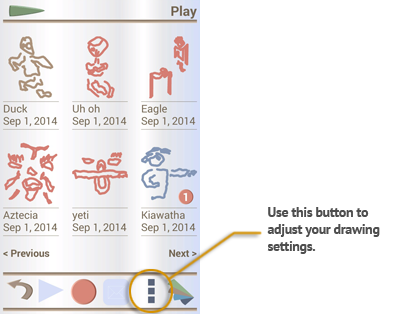
To change the settings that control what your recorded drawings will look like, simply click on the preferences button, which looks like three stacked squares. The preferences menu will allow you to change the line color and thickness, the speed and sensitivity of movements, and how the drawings are created.
4. Interact with Friends
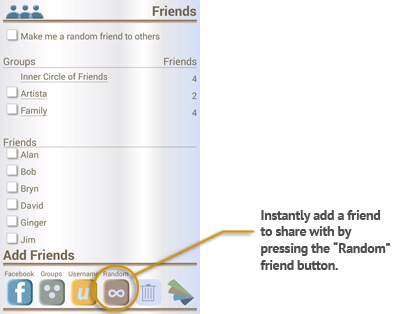
Once you've saved a few drawings, you can share them with your friends. Adding people to share drawings with is done in the "Friends" section. From the home page, press the button with three people on it to enter the Friends section. There are several ways to add friends. The easiest way to add a friend
is to press the "Random" button. The random button will choose another AirDraw user for you and add them to your friend list. If you know the username that one of your friend uses, you can enter it using the "Username" button. Finally, you can add friends through Facebook with the Facebook button.
Just press each button and follow the directions on the screen.
5. Sharing a Drawing
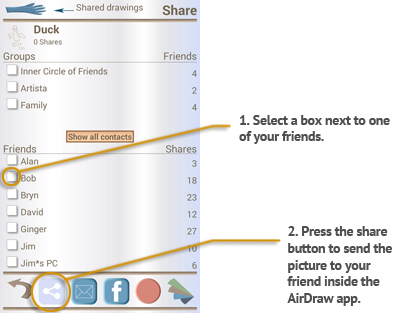
After you have added friends to your AirDraw account and saved a drawing you have made, it is easy to share the drawings with friends. After saving a drawing, the app will take you to the "Share" section and show you a list of your friends. To share your picture,
click on the box next to the name of the friends you would like to share with. Then click the green share button on the bottom of the screen. After adding a message to your drawing, press the check mark button to send the drawing to your friends.
6. Shared and Un-Shared Drawings
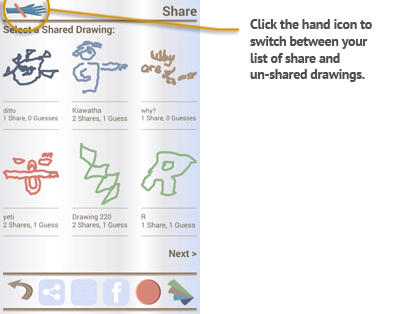
The "Share" section of AirDraw contains two lists of your drawings, and each list is stored on a separate page. One list is the drawings that you have already shared, and the other list is the drawings that you have not shared.
To switch between your shared and un-shared drawings, click the hand icon in the top left of the screen. Click it again to switch back to the other list.
Copyright 2014. All rights reserved.